A Practical Guide to Using a PDF to CSV Converter

If your team is still manually typing data from PDFs into spreadsheets, you're fighting a losing battle against inefficiency. A PDF to CSV converter is the tool that bridges this gap. It takes all that valuable but locked-down information from invoices, bank statements, and reports and turns it into clean, structured CSV files that spreadsheets and databases can actually use.
This isn't just about saving a few minutes; it's about fundamentally changing how you work with your own data.
Why Manual Data Entry Is Holding Your Business Back
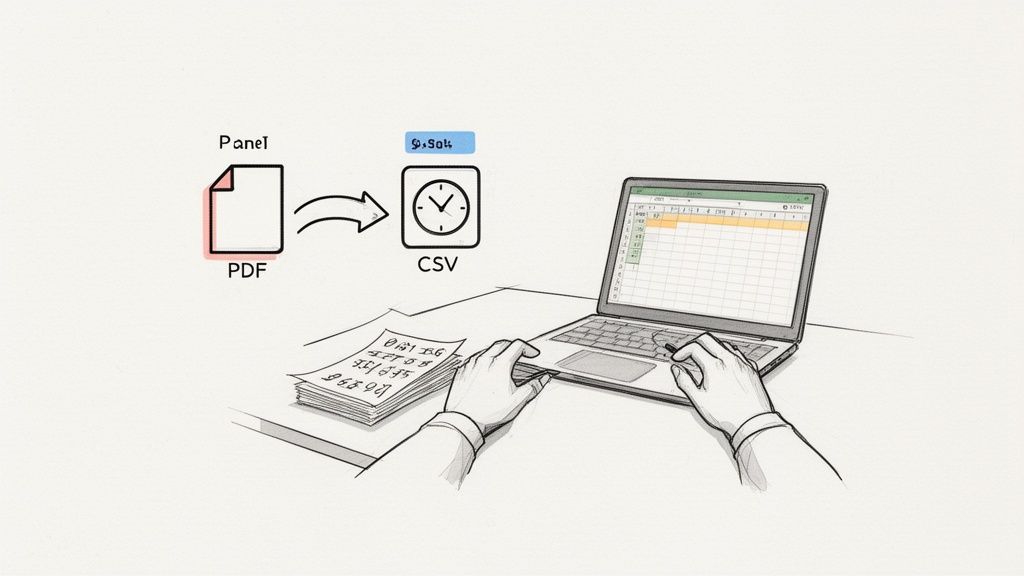
Let’s be honest: manually copying information from a PDF is a soul-crushing task. PDFs are great for sharing and printing because they lock everything into a fixed layout—but that's exactly what makes them terrible for data analysis. All the crucial numbers on your invoices, receipts, and financial reports are effectively trapped.
This isn't a small problem. It's a major operational bottleneck. Every hour an employee spends on mind-numbing data entry is an hour they could have spent on financial analysis, customer outreach, or something that actually grows the business. The process is slow and, worse, incredibly prone to human error. A single misplaced decimal or a transposed number can throw off your entire bookkeeping process.
The True Cost of Inefficiency
The real cost of manual data entry goes way beyond the time spent. It creates a ripple effect of problems that can hurt your entire organization.
- Delayed Financial Reporting: When it takes days to pull numbers from statements, your leadership team is making decisions based on old information.
- Increased Operational Costs: The time spent finding and fixing data entry mistakes is a direct hit to your bottom line.
- Reduced Employee Morale: No one enjoys tedious, repetitive work. Sticking your skilled employees with data entry is a fast track to burnout and low job satisfaction.
Think of it this way: unstructured PDF data acts like a dam, holding back the flow of information your business needs. A good PDF to CSV converter is what breaks that dam down, letting your data move freely.
It's no surprise that the market for these tools is exploding. Valued at around USD 985.6 million, the file converter software market is expected to skyrocket to USD 2,456.8 million by 2033—a growth rate of 9.6% annually. This trend isn't just about convenience; it's about a fundamental need for businesses to become more data-driven.
Here’s a quick look at why this shift is so critical:
Comparing Data Handling Methods PDF vs CSV
| Data Task | PDF (Unstructured) | CSV (Structured) |
|---|---|---|
| Data Sorting | Impossible without manual work | Instant (by column) |
| Calculations | Requires manual extraction first | Easy (using spreadsheet formulas) |
| Importing to Apps | Not supported by most software | Universally compatible |
| Searching Data | Limited to text search only | Granular (search specific fields) |
| Editing Data | Difficult and often requires special software | Simple (edit cells directly) |
This table makes it clear: to actually use your data for analysis, forecasting, or reporting, you need it out of the PDF and into a structured format like CSV.
Shifting From Manual Labor To Smart Automation
Moving to an automated solution is a game-changer. An intelligent PDF to CSV converter does more than just grab text; it understands the document's layout. It can tell the difference between columns, rows, and specific data fields, allowing it to cleanly extract line items from an invoice or transaction details from a bank statement.
This is especially powerful for workflows like expense management. Instead of someone manually keying in receipt details, you can automate expense reports and guarantee accuracy right from the start. The result is a faster, more reliable financial process that frees up your team to focus on the strategic work that matters.
Choosing the Right PDF to CSV Conversion Method
Picking the right pdf to csv converter is more than just a technical decision—it directly impacts your data's accuracy, its security, and how efficiently your team operates. Not every tool is right for every job. The best choice really hinges on the complexity of your documents, how sensitive the information is, and the sheer number of files you need to process.
Let's walk through the main options, from old-school manual methods to powerful automated solutions, so you can figure out what truly fits your workflow. Each one has its place, but they also come with some critical trade-offs.
The Occasional Manual Copy-Paste
We've all been there. You have a single, clean table in a PDF, and you think, "I'll just copy and paste it." For a one-off task with a few rows of data, this can work just fine. It costs nothing but a few minutes of your time.
But this approach falls apart almost immediately when things get even slightly complicated. Try it with a multi-page document or a table that spans a page break, and you'll end up with a formatting disaster. You’ll spend far more time fixing jumbled columns and correcting errors than you would have with a proper tool. It's a quick fix, not a real solution.
Free Online Converters: The Risky Middle Ground
A quick Google search will give you dozens of free online pdf to csv converter sites. They're tempting because they're fast, you don't have to install anything, and they're free. For something non-sensitive and simple, like a public price list, they can get the job done.
That convenience, however, comes with huge risks you can't afford to ignore, especially when dealing with business documents.
- Data Security Concerns: When you upload a document, you're sending it to some unknown third-party server. For financial records like invoices or bank statements, this is a massive security breach waiting to happen.
- Accuracy Limitations: Free tools often use very basic OCR that chokes on complex tables, different fonts, or scanned images. The result is often a messy, inaccurate CSV that needs a ton of manual cleanup anyway.
- Vague Privacy Policies: Many of these services have murky privacy policies. Your data could be stored forever or even sold. It’s a compliance nightmare.
Think of a free online converter like public Wi-Fi. It's fine for browsing, but you'd never log into your bank account on it. The same logic applies to your company's sensitive documents.
Dedicated AI-Powered Tools: The Professional Standard
For any business regularly processing financial documents, a dedicated, AI-powered platform is the only way to go. These tools are built from the ground up to understand the structure of invoices, receipts, and reports. They don't just "see" text; they identify key fields like "Invoice Number," "Total Amount," and individual line items.
This demand for intelligent document processing is huge. PDF conversion makes up a staggering 40% of all conversion requests in the file converter market. The PDF software market itself was valued at USD 2.15 billion and is expected to climb to USD 5.72 billion by 2033, a clear signal that businesses need sophisticated extraction tools. You can dig into these file converter market trends from DataHorizzon Research.
Specialized tools like ExtractBill offer advantages that free converters and manual methods can't touch. They can easily parse multi-page invoices with complex tables that would completely stump a basic tool. This precision is non-negotiable when that data needs to feed into your accounting software. The ability to process documents in bulk through an API also means you can fully automate the entire workflow, saving countless hours.
While the end goal might be a CSV, many professional platforms actually give you the data in a more versatile format first. Take a look at our guide on how to convert PDF to JSON; it explains why starting with a structured format gives you way more power before creating your final spreadsheet. This flexibility is what separates a professional-grade solution from the rest.
Of course. Here is the rewritten section, crafted to sound like an experienced human expert and following all your specified requirements.
How to Overcome Common PDF Conversion Challenges
Converting a PDF to a CSV file should be simple. But if you’ve ever tried it, you know the reality is often a mess of frustration. You’ve seen it all: blurry scanned receipts, invoices with ridiculously complex tables, and multi-page reports that just won’t play nice. These are the exact spots where most basic conversion tools fall apart, leaving you with a jumbled spreadsheet that needs hours of manual cleanup.
To fix these problems, you first have to understand why they happen. A PDF isn’t like a Word document; it’s more like a digital snapshot that locks text and graphics into fixed positions on a page. This design is what makes it so tough for simple software to grasp the underlying data structure, especially when the original document wasn't a clean, digitally-born file.
Dealing with Scanned Documents and Blurry Text
The scanned document is probably the biggest headache of them all. When you scan a paper invoice or receipt, you aren't creating a text file—you're just making an image of text. To get any data out of it, a pdf to csv converter needs to use Optical Character Recognition (OCR) to try and "read" the characters.
But here's the catch: not all OCR is created equal. Your average, run-of-the-mill OCR engine is incredibly fragile. It chokes on anything less than a perfect, high-resolution scan. A little bit of blur, a coffee stain, a shadow, or even a crumpled corner can turn your data into absolute gibberish. That "8" becomes a "3," or a "1" becomes an "I," and suddenly your financial data is riddled with subtle but critical errors.
This is where modern, AI-powered solutions completely change the game. They use sophisticated AI Vision models trained on millions of real-world documents. This gives them the ability to understand context, allowing them to figure out what a word or number should be even if it's blurry or distorted. The result is a massive leap in accuracy, saving you from having to triple-check every single line.
A good rule of thumb I use is this: if a human can reasonably read the document, a high-quality AI-powered OCR should be able to as well. Basic tools just don't have that level of common sense.
Navigating Complex Tables and Merged Cells
The next nightmare scenario is the creatively formatted table. We’ve all seen invoices and financial reports with tables that seem designed to break parsers:
- Merged Cells: Those annoying headers that span across multiple columns.
- Split Rows: A single line item that’s described over two or more rows.
- Missing Borders: Columns separated only by whitespace, which totally confuses basic tools.
- Nested Tables: Yes, tables inside of other table cells. It happens.
A standard converter looks at these layouts and just gives up. It might smash several columns together, skip rows entirely, or fail to link a line item to its correct price. You’re left with a CSV that is structurally broken and completely useless for any real analysis without a ton of manual surgery.
Again, this is a place where AI shines. Instead of just hunting for lines and borders, an AI model analyzes the document's visual layout. It understands the logical relationships between headers and the data beneath them. It can correctly figure out that a merged header applies to all the columns below it, making sure the final CSV actually preserves the table's real structure.
Handling Multi-Page Reports and Inconsistent Layouts
Finally, you have the challenge of multi-page documents. Think about a long bank statement or a detailed inventory report. The header is on page one, but the table format might shift slightly on the following pages. Trying to stitch that data together into one clean CSV file is a huge pain point for most tools.
A simple pdf to csv converter treats every page like an island. It has no memory of the column headers from page one by the time it gets to page two, which leads to fragmented, incomplete datasets. You often end up having to export each page one by one and then manually paste them together in Excel.
An intelligent platform is built for this. It’s designed to recognize recurring patterns and understand that a table is continuing from one page to the next. This lets it correctly append all the data, creating one continuous, clean CSV file from a long PDF—which is exactly what you need for accurate reporting and analysis.
To help you troubleshoot these common issues on the fly, here's a quick-reference table that breaks down the most frequent problems and how different approaches solve them.
Common Conversion Problems and Their Solutions
| Challenge | Manual or Basic Tool Solution | AI-Powered Solution (e.g., ExtractBill) |
|---|---|---|
| Blurry/Low-Quality Scans | Fails to extract data or produces gibberish. Requires manually re-typing everything. | Uses advanced AI Vision to clean up the image and accurately read distorted text. |
| Complex Table Structures | Mixes up columns, skips rows, or flattens the data incorrectly. Requires manual restructuring. | Analyzes the visual layout to understand merged cells and nested structures, preserving the table's integrity. |
| Multi-Page Documents | Processes each page separately, forcing you to manually combine multiple CSV files. | Recognizes that a table continues across pages and automatically stitches the data into a single, cohesive CSV. |
| Handwritten Notes | Almost always fails, returning unreadable characters or nothing at all. | Trained on handwriting samples to interpret and digitize handwritten numbers and text with high accuracy. |
| Inconsistent Formatting | Breaks when layouts change slightly from one document to the next. Requires a new template for each variation. | Learns from document variations and adapts, identifying key fields regardless of their position on the page. |
This table shows a clear pattern: while manual fixes are possible for simple issues, they don’t scale. AI-driven platforms are built from the ground up to handle the messy, unpredictable nature of real-world documents, saving you countless hours of tedious work.
Automating Data Extraction with a Converter API
When you’re processing a handful of PDFs, online tools are fine. But what happens when you need to handle dozens, hundreds, or even thousands of documents every single month? Manual uploads just don't scale.
This is where you make the real power move: automating the entire workflow with an API (Application Programming Interface). It lets your software talk directly to a powerful extraction engine, transforming a tedious, click-heavy task into a completely hands-off process.
Integrating an API might sound like a job for a whole engineering team, but it's surprisingly straightforward. For developers, it's the key to building a scalable data pipeline. You can set up a system that automatically pulls new invoices from an email inbox, sends them for extraction, and pipes the clean, structured data right into your accounting software or database—no human intervention needed.
Getting Started: Your First API Call
Before you can do anything, you need an API key. Think of it as a secure password that lets your application access the service. With a tool like ExtractBill, you just sign up and grab the key from your account dashboard. This key authenticates every request you make and keeps your data private.
With your key in hand, you're ready to send your first PDF for processing. The easiest way to kick the tires is with a simple command-line tool like cURL. It’s a fantastic way to confirm everything is working before you dive into writing actual code.
Here's what a basic request looks like:
curl -X POST "https://api.extractbill.com/v1/document"
-H "Content-Type: multipart/form-data"
-H "Authorization: Bearer YOUR_API_KEY"
-F "file=@/path/to/your/invoice.pdf"
Let's break that down. You're sending a POST request to the API, authenticating with your API key, and telling it where to find the PDF file on your local machine. Hit "Enter," and the document is instantly sent off for the AI engine to work its magic.
This isn’t just basic text scraping. A powerful AI OCR process can take a messy, even blurry PDF and convert it into perfectly structured data ready for your systems.
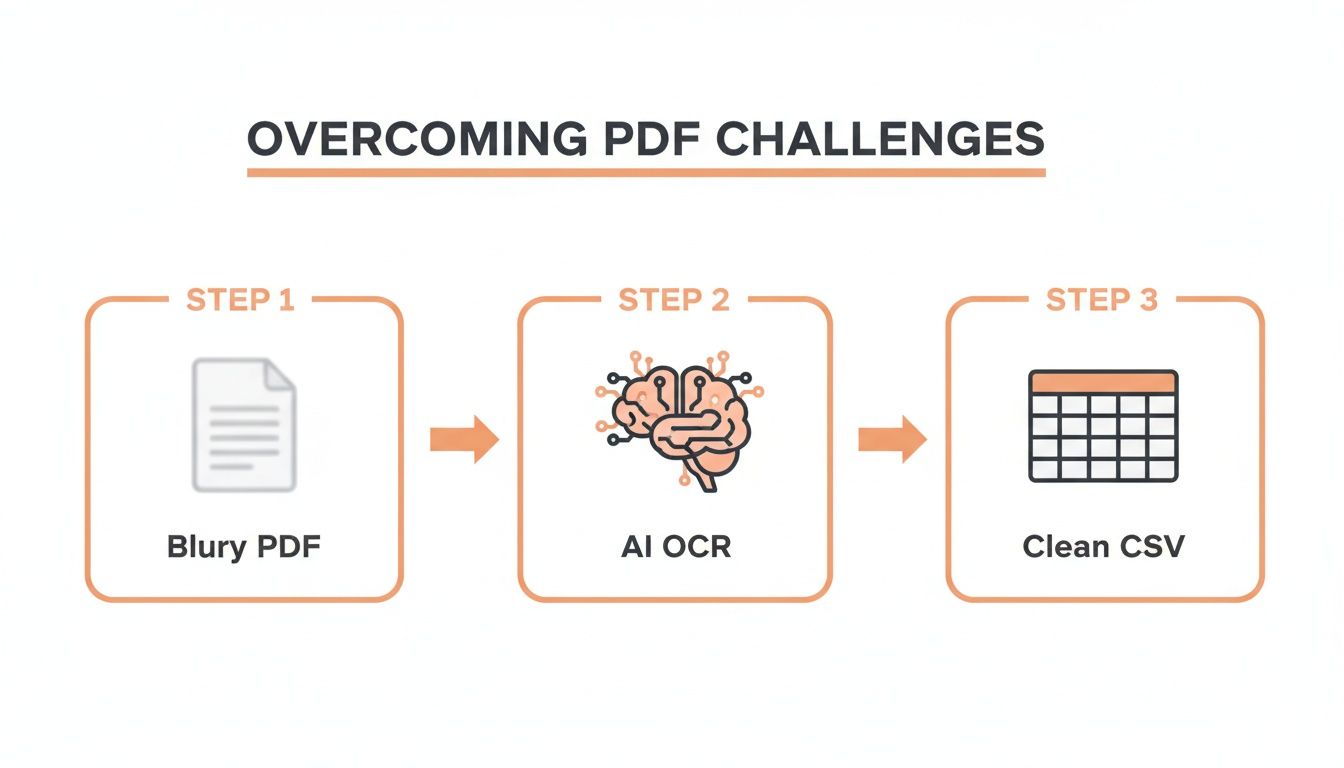
The takeaway here is that modern systems don't just read text; they understand, interpret, and clean it, turning a low-quality source into a high-value asset.
Why APIs Return JSON Instead of CSV
Once the API finishes processing your document, you might be surprised that it doesn't just hand you back a neat CSV file. Instead, you'll get a response in JSON (JavaScript Object Notation), and there's a very good reason for that.
JSON is a hierarchical format, meaning it excels at handling complex, nested information. Think about an invoice—it's not just a flat table. It has top-level details like an invoice number and total amount, but it also contains a list of individual line items, each with its own description, quantity, and price.
A CSV file is like a simple spreadsheet—it's just rows and columns. JSON, on the other hand, is like a relational database in a text file, capable of representing intricate data relationships with perfect clarity.
This structure gives you far more flexibility. You get all the extracted data in a rich, organized format. From there, it's trivial to write a small script that pulls out exactly the pieces you need and formats them into one or more CSV files. For instance, you could generate one CSV for the main invoice details and another for all the line items—perfect for importing into separate database tables.
From API Response to a Usable CSV
Okay, let's get practical. How do you turn that JSON response into the CSV file you actually need? This is where a few lines of code in your favorite programming language come in. Python, combined with its incredibly popular pandas library, is perfect for this job.
Let's say the API returns a JSON object with a list of line items. Here’s a quick Python script that grabs that data and converts it into a clean CSV file.
import pandas as pd
This is a sample JSON response you might get from the API
json_response = { "invoice_id": "INV-123", "total_amount": 550.00, "line_items": [ {"description": "Web Development Services", "quantity": 10, "unit_price": 50.00}, {"description": "Hosting Fee (Annual)", "quantity": 1, "unit_price": 50.00} ] }
Extract the list of line items
line_items_data = json_response['line_items']
Convert the list of dictionaries into a pandas DataFrame
df = pd.DataFrame(line_items_data)
Save the DataFrame to a CSV file
df.to_csv('invoice_line_items.csv', index=False)
print("CSV file created successfully!")
This script zeroes in on the line_items array within the JSON. Then, it uses pandas to instantly map that data into a tabular structure called a DataFrame. The final step saves that DataFrame to a CSV named invoice_line_items.csv, stripping out the default row index for a cleaner output.
With just that tiny snippet, you've built a repeatable process that turns a complex JSON object from the API into a perfectly structured CSV, ready for your spreadsheets or databases. For a deeper dive into all the available endpoints and response structures, check out the complete ExtractBill API Reference.
Building a Real-Time Workflow with Webhooks

Automating your PDF to CSV conversion with an API is a huge win, but there’s still room for improvement. The standard way to get results is polling—constantly hitting the API with the question, "Is it done yet?" This works, sure, but it's incredibly inefficient. Your server is just spinning its wheels, making request after request that usually comes back empty.
There's a much smarter way: webhooks.
Instead of your app constantly checking in, the API service pings you the instant the job is done. Think of it like this: polling is like repeatedly calling a restaurant to see if your table is ready. A webhook is getting a text from them the moment it is. This event-driven approach is the secret to building a truly hands-off, real-time data pipeline.
Why Webhooks Are Just Better
The biggest win with webhooks is the massive drop in pointless API traffic and server load. By ditching the polling loop, your application can just relax until there's actual work to do.
This has some serious real-world benefits:
- Instant Action: Your other systems—like your accounting software or a database—get updated the moment the data is ready, not whenever the next polling cycle happens to hit.
- Simpler Code: You can throw out all that clunky logic for managing polling intervals, timeouts, and handling endless "pending" statuses.
- Built to Scale: As your document volume explodes, a webhook system just works. A polling system, on the other hand, would grind to a halt under the weight of all those requests.
Using webhooks fundamentally flips your automation from a "pull" model (constantly asking for updates) to a "push" model (receiving them automatically). This push-based approach is the backbone of pretty much every modern, efficient system integration out there.
Getting your system ready to catch these notifications is surprisingly simple. You just need a publicly accessible URL—an endpoint—on your server that's ready to accept a POST request.
Setting Up Your Webhook Listener
To get these automated pings, you first have to tell the API service where to send them. With a service like ExtractBill, you just drop your endpoint URL into your account settings or include it with each API call. Once you do that, the service will fire a JSON payload at that URL as soon as a document flies through the pdf to csv converter.
Your part is to write a small piece of code on your server that listens at that URL, grabs the incoming data, and kicks off whatever needs to happen next. Here’s a quick and dirty example of a webhook listener using Flask, a super common Python web framework.
from flask import Flask, request, jsonify import hashlib import hmac import os
app = Flask(name)
It's crucial to store your secret key securely, not in the code
WEBHOOK_SECRET = os.environ.get('EXTRACTBILL_WEBHOOK_SECRET')
@app.route('/webhook-receiver', methods=['POST']) def webhook_handler(): # 1. Validate the incoming request signature = request.headers.get('X-ExtractBill-Signature') if not signature or not is_valid_signature(request.data, signature): return 'Invalid signature', 401
# 2. Process the valid data
data = request.get_json()
print(f"Received data for document ID: {data.get('document_id')}")

# Trigger next steps here, like saving to a database
# or converting the JSON data to a CSV file.

return jsonify({'status': 'success'}), 200
def is_valid_signature(payload, received_signature): # Create a hash-based message authentication code (HMAC) computed_hash = hmac.new( WEBHOOK_SECRET.encode('utf-8'), payload, hashlib.sha256 ).hexdigest()
# Compare the computed hash with the signature from the header
return hmac.compare_digest(computed_hash, received_signature)
if name == 'main': app.run(port=5000)
Don't Forget Security
Look closely at the is_valid_signature function in that code. This part is not optional. A public endpoint is, well, public. You have to be absolutely sure that the data hitting it is from the service you trust, not some random person on the internet.
This is handled by validating a webhook signature. ExtractBill signs every request with a secret key that only you and the service know. Your code uses that same secret to calculate its own signature from the request data. If your signature matches the one in the header, you know the request is legit. Always, always validate this signature before touching the data.
You can dig into the specifics in our official guide to ExtractBill webhooks.
By pairing API calls with secure webhook listeners, you can build a powerful, event-driven system. It turns your PDF to CSV workflow from a chore into a completely autonomous data machine.
Answering Your Questions About PDF to CSV Conversion
Whenever you're thinking about automating a part of your business, especially one that handles financial documents, questions are going to come up. It's only natural. You need to know how the tech really works, how your data is being handled, and what you can realistically expect from the results.
Let’s tackle some of the most common questions we hear from people who are just starting to explore a better way to get data out of their PDFs.
Can a Converter Handle Handwritten Invoices?
This is the classic stress test for any data extraction tool. The short answer is: it completely depends on the engine running under the hood.
Basic OCR tools will almost always fall flat here. They're built for clean, printed text and just can't make sense of the wild variations in human handwriting. You’ll end up with a mess of errors.
This is where modern AI-powered platforms really shine. A service like ExtractBill uses sophisticated AI Vision models trained on millions of real-world documents, including a massive amount of handwritten invoices and receipts.
While neat, block-style handwriting will always give you the best results, you'd be surprised at the accuracy these advanced systems can achieve on cursive or messy script. The best advice? Always run a few of your own tough documents through any tool you're considering. That’s the only way to get a true benchmark of how it will perform for your specific needs.
How Is Data Privacy Ensured with Online Tools?
Security isn't just a feature; it's a requirement. This is especially true when you're uploading invoices, bank statements, or receipts that contain sensitive financial information.
Be extremely cautious with free, anonymous online converters. Their business models are often a black box. You don't know where your data is going, how long it's being stored, or if it's being used for something you never agreed to. For any serious business purpose, it's a risk not worth taking.
Always opt for a professional service with a crystal-clear privacy policy and serious security infrastructure.
Look for the non-negotiables: encrypted data transfer (HTTPS), secure and private storage, and a clear, legally-binding promise that your data will never be shared or sold. Professional platforms are built on a foundation of trust.
Services built for business, like ExtractBill, treat security as a core part of the product. This means your data is protected from the moment you upload it to the moment you receive the results, giving you one less thing to worry about.
Why Do APIs Return JSON Instead of CSV?
This one can seem a little backward at first. You want a CSV file, so why does the API give you JSON? It all comes down to giving you more power and flexibility.
A CSV file is fundamentally a flat table—just rows and columns. This works fine for simple lists, but it's a poor fit for the nested structure of a typical invoice. An invoice has main details (like the invoice number and total amount) but also contains a list of individual line items, each with its own description, quantity, and price.
Trying to cram all that into a single, flat CSV file gets complicated and messy fast.
JSON (JavaScript Object Notation), on the other hand, is built to handle this kind of structured, hierarchical data perfectly. It can represent the main invoice details and the nested list of line items cleanly and logically.
By providing the data in a rich JSON format first, the API gives you complete control. From there, it's incredibly simple to write a small script to transform that JSON into any CSV format you need. You could create one CSV for the main invoice data and a separate one for the line items—a perfect structure for importing into a database. This approach is far more powerful than being stuck with a rigid, one-size-fits-all CSV output.
Ready to stop wasting time on manual data entry and start building an efficient, automated workflow? With ExtractBill, you can convert any PDF invoice or receipt into clean, structured data in seconds. Get started with three free documents and experience the power of 99.9% accuracy. Try ExtractBill for free.
Ready to automate your documents?
Start extracting invoice data in seconds with ExtractBill's AI-powered API.
Get Started for Free