A Modern Guide to Scan to Excel Automation

Here's the simple truth: you can scan to Excel. The whole process hinges on a technology called Optical Character Recognition (OCR), which takes a picture or a PDF of a document and transforms it into editable spreadsheet data.
This is the bridge that connects your filing cabinets full of invoices, receipts, and reports to functional, digital formats. It's how you finally stop the soul-crushing cycle of manual data entry and start using your information for actual analysis.
Why Scan to Excel Is a Business Necessity
Let's be honest, manually typing data from paper into a spreadsheet is more than just boring—it's a massive operational drag. It costs you time and, almost inevitably, introduces errors. For any business still wrestling with physical documents, this outdated workflow is a constant drain on resources that should be fueling growth.
The endless cycle of printing, signing, scanning, and then re-typing everything creates friction at every turn. It slows down decision-making and opens the door to human errors that can mess up everything from financial records to inventory counts.
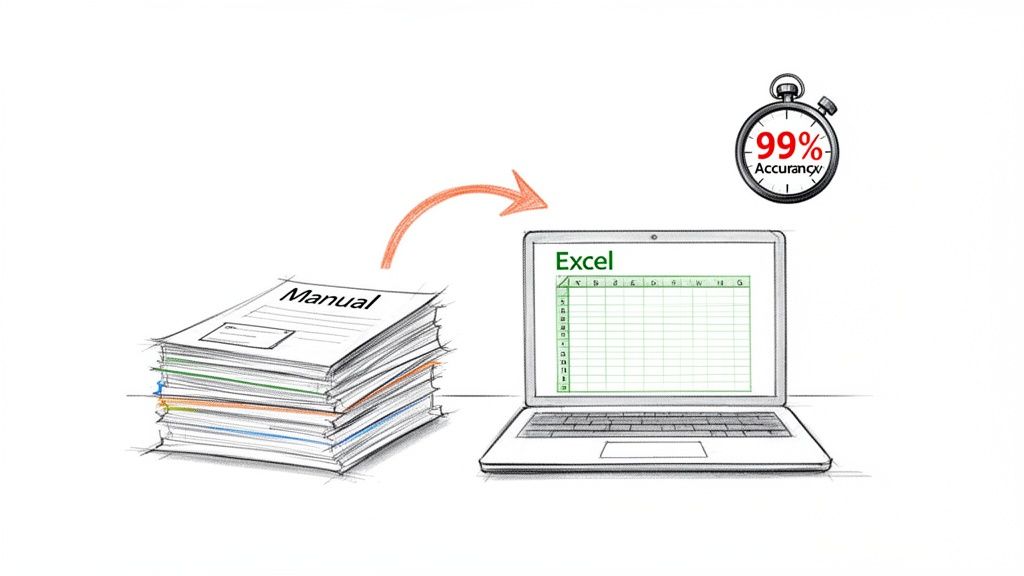
This is where modern scan to Excel workflows completely change the game. By pairing a good quality scan with powerful AI and Optical Character Recognition (OCR), you can automate the entire data capture process from start to finish. This isn't just a small tweak; it's a fundamental shift in how you manage information.
The Real-World Impact of Automation
The benefits you get from an automated scan to Excel system aren't theoretical—they're immediate and you can measure them. It’s not about convenience; it’s about unlocking real business value.
Think about these advantages:
- Reclaimed Productivity: Your team can get back hundreds of work hours every year. That's time they can spend on strategic analysis or client-facing work instead of mind-numbing data entry.
- Enhanced Data Accuracy: The best AI-powered OCR tools can hit accuracy rates well above 99%. This massively cuts down on the costly mistakes that come from manual input, like typing in the wrong invoice amount or customer ID.
- Real-Time Insights: When data from documents is instantly available in Excel, your business can make smarter decisions based on up-to-the-minute information, rather than waiting days for someone to process a stack of paper.
This guide is your starting point for ditching the paper piles for good. We'll walk through the practical steps, tools, and best practices you need to modernize your data entry workflow and turn static documents into dynamic assets.
Ultimately, mastering the scan to Excel process gives your organization the ability to operate with way more efficiency and precision. It takes your data out of locked, physical formats and puts it into a flexible, digital environment where it can actually be sorted, analyzed, and put to work.
How to Get a Perfect Scan Every Time
Let’s be honest: the final Excel file is only ever as good as the scan you feed the machine. This is the classic "garbage in, garbage out" rule, and it's especially true for OCR. A blurry, crooked, or poorly lit scan forces the software to guess, and that’s how you end up with jumbled data and hours of frustrating cleanup.
Taking a few moments to get the scan right from the start is the single most important thing you can do. You’re giving the OCR software its best shot at success. The clearer the "picture" it has to work with, the more accurately it can read the text and understand the table structure.
This initial step is non-negotiable for getting reliable data, and it's a big reason why businesses are investing heavily in better scanning tech. The global scanner market hit USD 5.2 billion in 2022 and is expected to jump to USD 8.7 billion by 2032. It’s a clear signal that companies are serious about digitizing their documents the right way. For a deeper dive, check out the full scanner market research from Allied Market Research.
Dial In Your Scanner Settings
Before you hit that scan button, jump into the settings. A few small tweaks here can dramatically improve your OCR results.
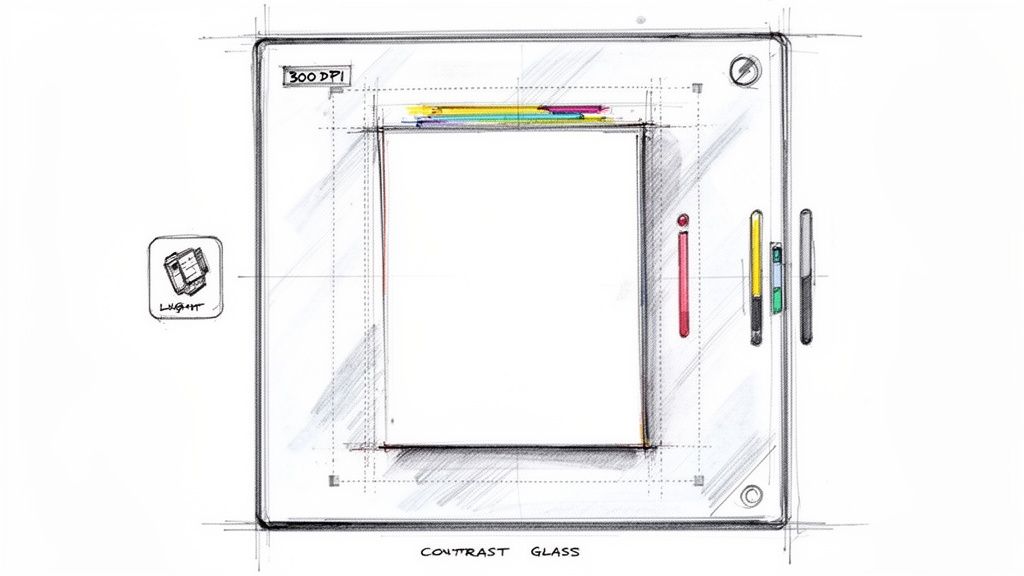
- Set Resolution to 300 DPI: This is the gold standard for OCR. Going lower can make the text pixelated and unreadable. Going higher, like 600 DPI, just creates massive files without much of an accuracy boost for standard documents. Stick with 300 DPI.
- Choose the Right Color Mode: Unless color is essential to understanding the document (like in a pie chart), always scan in black and white (monochrome). This creates the sharpest possible contrast between the text and the background, which is exactly what OCR software loves.
- Select the Correct File Format: For documents with multiple pages, PDF is your best bet. It’s universal and keeps everything in one place. For single pages or when you need maximum detail, TIFF is a fantastic lossless option that avoids compression fuzziness.
Prepare Your Physical Documents
The condition of the paper you’re scanning is just as critical as your digital settings. A clean, flat page is the bedrock of a good scan.
Key Takeaway: OCR software isn't magic. It's a tool that interprets what it sees. Creases, shadows, and coffee stains are just visual noise that confuses the algorithm. A clean scanner and a straight document are your first line of defense against bad data.
Simple prep work prevents the most common errors. A crumpled receipt, for example, will cast tiny shadows that can hide numbers or make a "1" look like a "7". For more tips on dealing with tricky documents like that, take a look at our guide on https://www.extractbill.com/blog/ocr-for-receipts.
Create the Ideal Scanning Environment
Finally, take a look at the space around your scanner, especially if you’re using a mobile app or a flatbed with the lid open.
- Ensure Even Lighting: Harsh, direct light creates glare and dark shadows. You want diffused, consistent light across the whole page. If you're using your phone, make sure you aren't casting your own shadow over the document.
- Straighten the Document: Make sure the paper is perfectly aligned with the scanner's edges. A slightly tilted page is one of the biggest culprits of OCR failure because the software struggles to follow the lines of text.
- Clean the Scanner Glass: Dust and smudges on the scanner bed will show up as specks and lines on your digital file. The OCR might mistake them for periods, commas, or parts of letters. A quick wipe with a microfiber cloth makes a huge difference.
Alright, you’ve got a clean, high-quality scan. Now for the most important decision: picking the right tool to pull the data out. This isn't a one-size-fits-all situation. The best choice really hinges on what you’re trying to do, how many documents you’re dealing with, and your budget. Get this right, and your workflow will be smooth; get it wrong, and you've just created a frustrating bottleneck for yourself.
We can really break down the options into three main buckets. Each has its own strengths and is built for different jobs, whether you're scanning a single receipt on your phone or processing thousands of invoices every single day.
The push for this kind of efficiency is massive. Just look at the numbers: the global market for automatic sheet-feed scanners hit USD 447 million in 2024 and is expected to jump to USD 638 million by 2032. This growth is all about businesses, especially in banking and healthcare, finally going paperless. You can see more on these trends from IntelMarketResearch.
Desktop Software Solutions
This is the old-school approach. Think software you install directly on your computer, like Adobe Acrobat Pro. The biggest win here? It works completely offline. If you're handling sensitive data that absolutely cannot be uploaded to a cloud server, this is a huge plus.
You typically pay a one-time fee or a predictable subscription, which makes budgeting easy. The downside is that they can be a bit limited. They’re fantastic for turning a simple document into a searchable PDF, but throw a complex table at them, and things can get ugly. It’s not uncommon for them to spit out a jumbled mess of text in Excel instead of neat rows and columns.
Mobile Scanning Apps
For grabbing something quickly on the go, nothing beats a mobile app. Tools like Microsoft Office Lens or Adobe Scan turn your phone into a pretty decent scanner. They're perfect for snapping a picture of a business card at a conference or scanning a single-page receipt. You just point, shoot, and the app's OCR does its best to pull out the text.
But they have their limits, mainly around scale and complexity. These apps just aren't built for high-volume, repetitive work or for documents with tricky layouts, like multi-page invoices with dozens of line items. Think of them as a digital Swiss Army knife—great for small, one-off tasks, but you wouldn't use one to build a house.
Cloud-Based AI Platforms
This is where the real power is today. Services like ExtractBill use sophisticated AI and computer vision that blow basic OCR out of the water. Instead of just "reading" text, these platforms actually understand the document's structure. They can tell the difference between a header, a line item, and a total, and they see the relationship between columns in a table.
Key Insight: Modern AI platforms don't just see characters; they see context. This is what allows them to preserve complex table structures with incredible accuracy, a task where traditional OCR almost always stumbles. They know a "Total" field isn't the same as a "Subtotal," ensuring your data ends up in the right Excel cell, every single time.
These platforms work through a web browser or an API, making them perfect for automating high-volume workflows. You can feed them thousands of documents without any manual effort. Yes, you need an internet connection, but the payoff in accuracy and scale makes them the only real choice for businesses that are serious about automating data entry. For a deeper dive, check out our guide on the best invoice OCR software.
Comparison of OCR Methods for Scanning to Excel
To help you visualize the trade-offs, here’s a quick breakdown of how these three approaches stack up against each other.
| Method | Best For | Accuracy | Scalability | Cost Model |
|---|---|---|---|---|
| Desktop Software | Low-volume, offline processing of simple documents with sensitive data. | Moderate to High | Low | One-time fee or subscription. |
| Mobile Apps | On-the-go capture of single receipts, business cards, or simple pages. | Low to Moderate | Low | Often free or freemium. |
| Cloud-Based AI | High-volume, automated processing of complex documents like invoices. | Very High (99%+) | High | Pay-per-use or subscription. |
Ultimately, choosing the right tool is a balancing act. If you only process a few simple documents a month and need to stay offline, desktop software is a perfectly fine choice. But if your business runs on accurately capturing data from hundreds or thousands of complex invoices, a cloud-based AI platform isn't just an option—it's the only sustainable way forward.
Extracting Complex Tables Without Losing Structure
Getting raw text from a scanned document is one thing. But the real magic—and where most basic tools completely fall apart—is preserving the structure of a complex table. What good is converting a scan to Excel if your neatly organized invoice table becomes a single, jumbled block of text?
This happens because standard OCR reads text like a human reads a book: left to right, top to bottom. It doesn't inherently understand the spatial relationships that define a table—the columns, rows, and headers that give the data its actual meaning. It sees the numbers and words but misses the crucial context that ties them together.
Why Standard OCR Fails with Tables
Imagine an invoice with columns for 'Item Description', 'Quantity', 'Unit Price', and 'Total'. A basic OCR tool is likely to read straight across the page, grabbing "Laptop Stand," then "2," then "$35.00," and "$70.00." In the final Excel sheet, these four distinct data points might get crammed into one cell or spread randomly across multiple rows, completely severing their relationship.
Suddenly, the tool that was supposed to save you time has created a new, frustrating cleanup job that often takes longer than just typing the data in by hand. This is the exact limitation that modern, AI-powered platforms were designed to solve.
Using Computer Vision to Understand Layout
The best scan-to-Excel solutions don't just rely on OCR. They pair it with computer vision, an AI-driven approach that allows the software to analyze the document visually, much like a person would. It identifies blocks of text, lines, and even the empty white space to recognize the document's entire layout before it even starts reading the text.
This technology can:
- Identify Table Boundaries: It intelligently detects the edges of a table, even if the lines are faint, dotted, or missing altogether.
- Locate Headers: The AI recognizes that 'Quantity' and 'Unit Price' are column headers, not just more data to be extracted.
- Parse Line Items: It understands that each row represents a unique record and is smart enough to keep all the data for that item grouped together.
- Handle Complexities: It can correctly interpret tricky layouts with merged cells, multi-line item descriptions, or tables that spill over onto a second page.
By first understanding the document's architecture, these systems can accurately map every piece of data to the correct cell in your spreadsheet. The critical link between the number "2" and its header, "Quantity," is preserved perfectly.
Think of it like this: Basic OCR is like someone reading a novel out loud, one word at a time. Computer vision is like an experienced accountant glancing at an invoice and instantly knowing where to find the totals, line items, and vendor details. It’s all about context, not just characters.
Practical Tips for Complex Table Extraction
Even when you're using a powerful AI tool, a few small adjustments on your end can guarantee the best possible results when you scan to Excel.
First, always validate the output. Once the data is in Excel, do a quick spot-check. Do the column totals in the spreadsheet match the totals on the original document? This simple check is the fastest way to catch any major extraction errors.
Next, pay attention to faint borders or gridlines. If your source documents have very light table lines, bumping up the contrast a bit during the scanning phase can make a world of difference. This helps the AI clearly define the table's structure.
Finally, be mindful of merged cells. Financial statements and summary reports often use merged cells for section titles or breaks. While top-tier AI can usually navigate these, they’re worth a quick review to ensure no data was misplaced. The underlying technology often converts these visual documents into a structured format first. A great example of this is learning more about how to convert an image to JSON, which is a common intermediate step in these advanced workflows. This structured data is then used to populate the Excel file with precision. Getting this right is what separates a truly automated system from one that just makes more work for you.
Building a Fully Automated Document Workflow
Processing documents one by one is fine for a while, but it doesn't scale. When you're dealing with hundreds or thousands of invoices, receipts, or forms every month, the manual upload-and-click routine becomes a serious operational bottleneck. The goal is to build a truly hands-off system that just works in the background, 24/7.
This is where an Application Programming Interface (API) changes the game. Instead of a person logging into a website to upload a file, an API lets your own software talk directly to an extraction service like ExtractBill. It's the key to building a completely automated workflow, wiping out manual steps and saving countless hours.
The global push for this kind of automation is clear. The document scanner market is on track to hit USD 11.15 billion by 2033, with small and medium-sized businesses driving a 9.50% CAGR. This signals a massive shift toward digitizing and automating office work across the board. SNS Insider has some great data on this trend.
The Anatomy of an Automated Workflow
So, what does a hands-off scan to excel workflow actually look like? Think of it as a chain reaction where each step automatically triggers the next, turning a raw document into structured data without anyone lifting a finger.
Let's say an invoice lands as a PDF attachment in a dedicated inbox, like invoices@yourcompany.com. Here’s how the automation kicks in:
- The Trigger: An automation tool like Zapier, Make, or even a simple custom script is always watching that inbox. The moment a new email with an attachment arrives, the workflow starts. The trigger could just as easily be a new file dropped into a specific folder in Google Drive, Dropbox, or OneDrive.
- API Call: The automation tool grabs the file and sends it to the extraction service's API. This is just a secure command that says, "Here's a document, process it."
- Data Extraction: The AI platform goes to work. Using computer vision and its OCR engine, it figures out the document type, finds key fields, and untangles even the most complex tables. The whole thing usually takes just a few seconds.
- Structured Data Return: The API doesn't just spit back a wall of text. It returns the data in a clean, structured format like JSON. This format is perfectly organized with clear "key-value" pairs (like
"invoice_total": "145.99"), making it incredibly easy for any other software to read and use.
This diagram gives you a high-level view of how a physical document becomes clean, structured data ready for Excel.
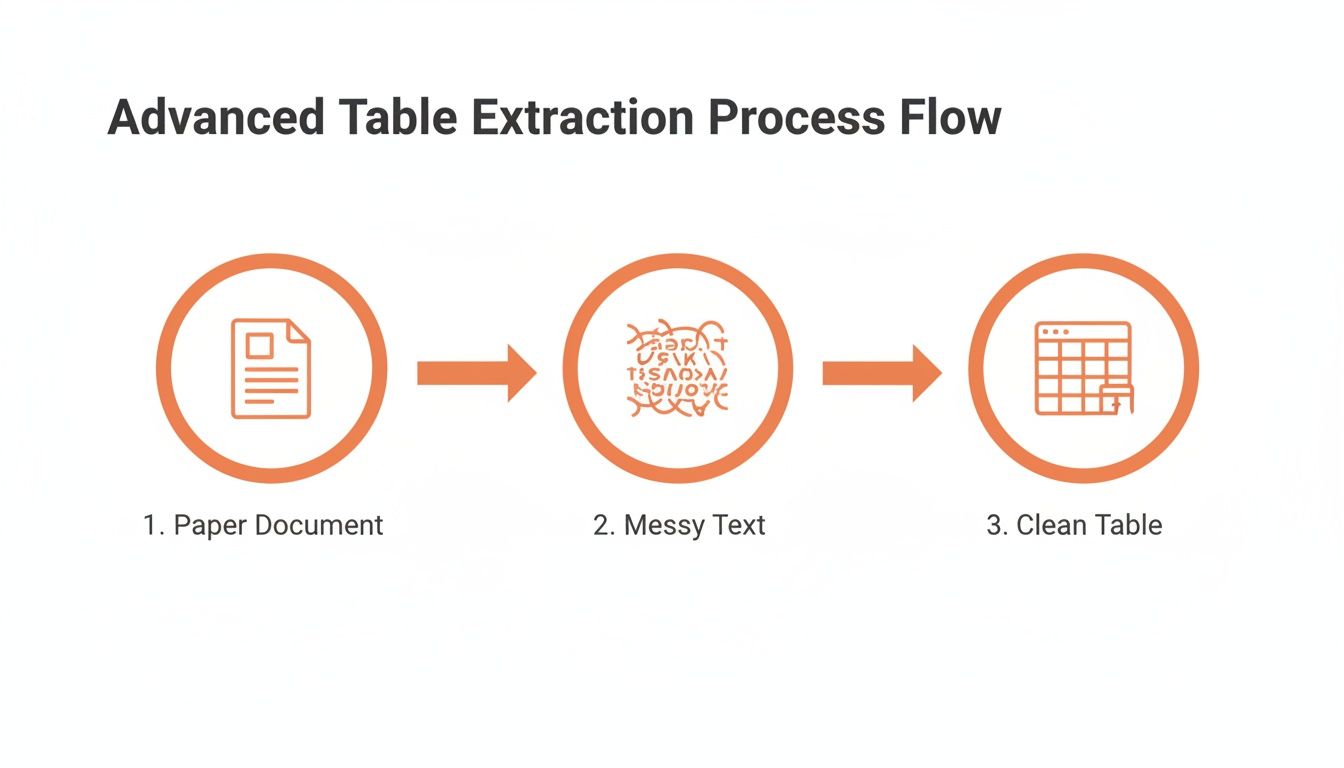
It really shows the transformation from a messy paper source to an organized, machine-readable format.
Closing the Loop with Webhooks
The last piece of the puzzle is getting that extracted data where it needs to go—your Excel sheet, accounting software, or ERP system. This is where webhooks come in.
A webhook is basically just a notification. As soon as the API finishes processing the document, it sends a signal to a URL you've provided. This signal tells your system, "The data is ready."
A webhook flips the script on automation. Instead of your system constantly asking the API "Are you done yet?", the API proactively tells your system "I'm done, here's the data." This is far more efficient and enables true real-time processing.
When your system gets that webhook notification, it triggers a final script. This script takes the structured JSON data, pulls out the fields you care about (like vendor name, date, and line items), and automatically plugs them into the right columns in an Excel spreadsheet or your accounting platform.
The entire loop—from an email arriving to the data being entered—is done in seconds. Zero human effort. This is exactly how businesses achieve huge efficiency gains and scale their operations without having to scale their headcount. To dig deeper, check out our complete guide to automate your document workflow.
Troubleshooting Common Data Extraction Issues
Even with the best tools, converting a scan to Excel isn’t always a perfectly smooth ride. Let's be honest, real-world documents are messy, and OCR technology, while powerful, can sometimes get tripped up. Knowing how to diagnose and fix the most frequent extraction errors will save you from major headaches and ensure your final data is actually reliable.
One of the most classic issues is character misinterpretation. This is when the OCR engine confuses similar-looking characters—think turning a '0' into an 'O', a '1' into an 'l', or a '5' into an 'S'. This happens a lot with lower-quality scans where the text is slightly blurry or faded, forcing the software to make an educated guess.
Solving Character and Formatting Errors
The quickest fix for character confusion is often just going back to the source. If possible, rescanning the document with higher contrast or at the recommended 300 DPI can clear things right up. Sharper text leaves no room for ambiguity.
Another common frustration is when your table data gets completely jumbled. You might see columns smashed together into a single cell or entire rows shifted out of alignment. This is a dead giveaway that your OCR tool lacks layout awareness. Basic tools just read text from left to right, completely ignoring the grid structure that gives the data its meaning.
Pro Tip: When your tables are a mess, it's almost always a tool limitation. The most effective fix is upgrading to a modern AI platform that uses computer vision to actually understand document structure. These systems are built from the ground up to preserve table integrity.
For other common formatting headaches, here are a few quick fixes:
- Handling Multi-Page Documents: Make sure your tool is set to process all pages of the PDF. It sounds simple, but some tools default to only the first page, which is an easy setting to overlook.
- Dealing with Handwriting: Handwritten notes are a notorious challenge for most OCR. The best approach is to use a tool with a specialized AI engine trained on cursive and print. If the notes aren't needed, you can also just manually crop them out of the scan area before processing.
- Managing Special Characters: If you're working with documents containing unique currency symbols (€, £, ¥) or different languages, double-check that your extraction software supports them. A tool limited to a standard English character set will often spit out errors or gibberish.
By figuring out the root cause—whether it’s a bad scan, a limited tool, or a tricky document format—you can apply the right solution and get back to producing clean, accurate Excel data in no time.
Frequently Asked Questions
Even with the best guides, you're bound to run into a few specific questions when you're getting started. Here are some of the most common ones we hear about the scan-to-Excel process, with straightforward answers to get you unstuck fast.
Can I Scan a Document Directly to Excel?
Not in the way you might think. Your scanner's job is to create an image file, like a JPG or PDF. It doesn't know how to create a spreadsheet.
To bridge that gap, you need a middleman: an Optical Character Recognition (OCR) tool. This software "reads" the image your scanner creates, pulls out the text and numbers, and structures it in a way that Excel can understand. Think of OCR as the translator between your physical paper and your final spreadsheet.
How Accurate Is the Scan to Excel Process?
The accuracy really boils down to two things: the quality of your scan and the power of your OCR software.
If you feed a modern, AI-driven platform a crisp, clean 300 DPI scan of a well-organized document, you can expect accuracy north of 99%. On the flip side, a blurry phone picture run through a basic free tool is going to give you messy data, especially if it's trying to figure out a complex table.
It’s a classic case of "garbage in, garbage out." A sharp scan and a smart tool are your secret weapons for getting reliable data.
Can I Convert Handwritten Notes to Excel?
Yes, but this is where you separate the basic tools from the advanced ones. Standard OCR is built for printed text and will almost always stumble over handwriting.
To do this successfully, you need an AI-powered solution that has been specifically trained on thousands of different handwriting styles. Even with the best technology, accuracy will be lower than with printed documents. It's a great starting point, but always plan for a quick human review to catch any mistakes.
Ready to finally ditch manual data entry? ExtractBill uses powerful AI to turn your scans, PDFs, and images into perfectly structured Excel data in seconds. Try it for free at ExtractBill and see how much time you can save.
Ready to automate your documents?
Start extracting invoice data in seconds with ExtractBill's AI-powered API.
Get Started for Free